 Download MODALIZER+
Here's a nice thing about blogging, it keeps a log, Ha?! And like a log, it's a peace of history and as it's been running since 2008 I find it interesting (well, it's my blog). I'm coming to the point, and the point is that MODALIZER+, a software that my team and I develop for quite a while now is kind of documented here with all its evolvement, since it started as a bunch of tests of our SDK up to its current release which I'm quite happy with. And now as there are more and more users of MODALIZER+, we started making this video tutorials series on YouTube. We have two videos now and we're working on more to add to the channel. Check them out. The first two ore more focused on the software itself and the next ones are going also to focus on DICOM in general. Stay tuned and tell me what you think in the comments.
Sunday, June 30, 2024


Tuesday, July 4, 2023
Indexing DICOM files in a directory into a CSV file using PowerShell and MODALIZER-SDK
This post is continues my series on PowerShell DICOM scripting. It covers a very common task that repeats itself in all kind of forms where I have a directory full of DICOM files that piled up somewhere and needs to be indexed and processed. PowerShell scripting comes handy in these cases where there's a need to do something fast and probably change it on the fly. Of course, you will need our MODALIZER-SDK for this one.
#!PowerShell ... jeje ... this doesn't work on widows ;-)
#!PowerShell ... jeje ... this doesn't work on widows ;-)
# Well, this is something very useful (I think) for anyone managing a PACS.
# Lets say you have a directory full with DICOM files you have no idea what's in them (you do, right?) and you want to scan through them.
# So, here's a little powershell script for this:
# Ok, so first we get the directory to scan as a command line parameter
param ($ScanPath)
# This is a function. It extract one element from a DICOM object and return an empty string if the element doesn't exist or doesn't have a value. We use it later on.
function Get-Value($obj, $tag)
{
$e = $obj.GetElement($tag)
if ($e -ne $null)
{
if ($e.Value -ne $null)
{
return $e.Value
}
else
{
return ""
}
}
else
{
return "";
}
}
# Modify this array to add more tags. The pair items are used for headers (and readabity).
$tags = @(
0x00080016, "sop class uid",
0x00080018, "sop instance uid",
0x00080020, "study date",
0x00080030, "study time",
0x00080050, "accession number",
0x00100010, "patient name",
0x00100020, "patient id",
0x00100030, "patient birth date",
0x00100040, "patient sex",
0x0020000d, "study Instance UID",
0x0020000e, "$series Instance UID")
# This prints a nice CSV header line.
# Note all the '","' to enclose values in double quotes and separate them with commas.
function Print-Header
{
$line = '"Filename","Status'
for (($i=1); ($i -lt $tags.Count); ($i+=2))
{
$line += '","'
$line += $tags[$i]
}
$line += '"'
$line
}
# This is where the element values are extracted and one line is returned.
# The filename is in the first column and a status is in the second. Then the values from the tags array follow.
# The status can be "OK" or "ERROR". You will also see errors in stderr.
function Parse-DicomFile($filename)
{
$line = '"'
$line += $filename
$line += '","OK'
try {
$obj = New-Object -ComObject rzdcx.DCXOBJ
$obj.openFile($filename)
for (($i=0); ($i -lt $tags.Count); ($i+=2))
{
$line += '","'
$line += Get-Value $obj $tags[$i]
}
$line+='"'
} catch { $line = '"' + $filename+ '","ERROR"' }
return $line
}
# Here it starts. We first print the header and then scan through the folder and extract the data from every DICOM file.
# Note ignoring directories
Print-Header
Get-ChildItem -Recurse -Path $ScanPath | Foreach-Object {
if ($_.Attributes -ne "Directory") {
Parse-DicomFile $_.FullName
}
}
# Enjoy!!!
Wednesday, June 28, 2023
Introduction to DICOM - Chapter 5 – Solving a DICOM Communication Problem
Today we are going to diagnose a communication problem between two DICOM applications and hopefully find the reason for the problem and solve it. I know, we didn’t even start talking about the DICOM network protocol, but hey, we’re not going to read all this 3,000 pages standard together before getting our hands dirty, right?
In this post we'll discuss:
In this post we'll discuss:
- Application Entities (AE’s) – the nodes in the DICOM network and their name – AE Title
- Association – a network peer-to-peer session between two DICOM applications
- Association Negotiation – The first part of the association in which the two AE’s agree on what can and can’t be done during the Association
- The Verification Service using the C-ECHO command – a DICOM Service Class that is used to verify a connection, sort of application level ‘ping’.
- The Storage Service using the C-STORE command – a DICOM Service that allows one AE to send a DICOM object to another AE
The C in C-ECHO and C-STORE commands stands for Composite. If you remember, in chapter 4 when discussing the DICOM Data Model, we said that DICOM applications exchange composite objects (the DICOM images that we already know) that are composites of modules from different IE's where IE's are the information entities of the Normalized DICOM data model.
Here's the story:
Complaint 20123
Burt Simpson from Springfield Memorial Hospital reports that he can’t send the screen capture to the PACS. He kept clicking the green “Send” button but he always gets the same error: “Operation Failed!”. The log file Burt copied from the system is attached.
You may ask yourself, what’s the point in analyzing a log of an application that we are never going to use? Well, the truth is that all DICOM logs look alike. Actually, most DICOM applications are quite similar because DICOM software implementations have common ancient ancestors. If it’s a C library it may be the DICOM test node, CTN. If it’s Java than it might be dcm4che. Even if it's PHP or other newer languages, the libraries were transcribed and ported from the old C implementations so all DICOM logs are similar.
Query/Retrieve part II - C-MOVE
In part I of this post, I was in a meeting with a customer reviewing their workstation code and while sitting there I was thinking to myself, why should my customers have to deal with so many details of the DICOM Q/R Service when all they really want is to retrieve a study just like they would have downloaded a zip file from a web site. And thus, later, back in my office I decided to extended the DICOM Toolkit API to include a C-MOVE method that will take care of everything including the incoming association. In today’s post I’m going to use the new MoveAndStore method to talk about the DICOM Query/Retrieve service. We’ll start at the end and then work our way backwards.
C-MOVE is a DICOM command that means this: The calling AE (we) ask the called AE (the PACS) to send all the DICOM Instances that match the identifier to the target AE.
Here’s how you ask a PACS to send you the DICOM images with RZDCX (version 2.0.1.9).
public void MoveAndStore()
{
// Create an object with the query
matching criteria (Identifier)
DCXOBJ query = new DCXOBJ();
DCXELM e = new DCXELM();
e.Init((int)DICOM_TAGS_ENUM.patientName);
e.Value = DOE^JOHN";
query.insertElement(e);
e.Init((int)DICOM_TAGS_ENUM.patientID);
e.Value = @"123456789";
query.insertElement(e);
// Create an accepter to handle the
incomming association
DCXACC accepter = new
DCXACC();
accepter.StoreDirectory = @".\MoveAndStore";
Directory.CreateDirectory(accepter.StoreDirectory);
// Create a requester and run the query
DCXREQ requester = new
DCXREQ();
requester.MoveAndStore(
MyAETitle, // The AE title
that issue the C-MOVE
IS_AE, // The PACS AE title
IS_Host, // The PACS IP address
IS_port, // The PACS listener port
MyAETitle, // The AE title
to send the
query, // The matching criteria
104, // The port to receive the results
accepter); // The accepter
to handle the results
}
Behind this rather short function hides a lot of DICOM networking and when it returns we should have all the matching objects stored in the directory “.\MoveAndStore”. Readers with some practical DICOM experience probably expect me to say that it can also fail. In that case MoveAndStore throws an exception with the error code and description. Sometimes you would have to set the detailed logging on and start reading logs like we did in chapter 5 of this tutorial on DICOM networking and in some later post we will look together at a DICOM log of a Q/R transaction.
The following diagram, taken from part 2 of the DICOM standard, is commonly seen in DICOM Conformance Statements as the Data Flow diagram of the Q/R Service. These diagrams and their notation are defined by the standard in part 2 that specify the DICOM Conformance Statement – a standard document that every application vendor should provide and that describes how they implemented the standard in their product. At some point we will get to how to read and write these documents.

The vertical dashed line represents the DICOM Protocol Interface between the two applications (it is usually a single dashed line but in this example it got a bit messed up). The arrows accros the interface represents DICOM associations. The arrow points from the application that initiates the association (the requester) to the application that responds to it (the responder or accepter). The upper part of the diagram shows the control chanel where the C-MOVE request is sent and statuses are reported back by the PACS. The lower part of the diagram shows the data chanel where the DICOM instances are sent to the client.
DICOM Modality Worklist
Modality worklist (MWL) is one of DICOM’s workflow services that really make a difference. It’s the difference between grocery store workflow with notes on little pieces of paper and a true modern accountable workflow.
Technically speaking, DICOM Modality Worklist is a task manager just like a piece of paper with short text and a check box or the tasks application on your iPhone (or Android). But for the imaging center or RAD department the advantages are enormous. The most obvious benefit is that there’s no need to reconcile all kind of misspelled names in the PACS because the patient name is no longer keyed in on the modality workstation but received electronically via the MWL query. The fact that the requested procedure is also received electronically reduces the chance for doing the wrong procedure to the wrong patient. Combined with Modality Performed Procedure step (MPPS), that allows the modality to report the task status, take ownership over the task and checkmark it as done when completed, the up side is obvious. No wonder then, that many HMO’s require Modality Worklist as a mandatory feature for every imaging device they purchase.
Technically speaking, DICOM Modality Worklist is a task manager just like a piece of paper with short text and a check box or the tasks application on your iPhone (or Android). But for the imaging center or RAD department the advantages are enormous. The most obvious benefit is that there’s no need to reconcile all kind of misspelled names in the PACS because the patient name is no longer keyed in on the modality workstation but received electronically via the MWL query. The fact that the requested procedure is also received electronically reduces the chance for doing the wrong procedure to the wrong patient. Combined with Modality Performed Procedure step (MPPS), that allows the modality to report the task status, take ownership over the task and checkmark it as done when completed, the up side is obvious. No wonder then, that many HMO’s require Modality Worklist as a mandatory feature for every imaging device they purchase.
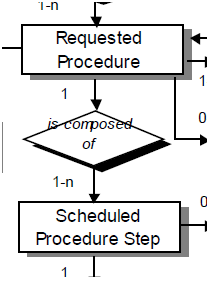
The most basic abstraction of a task is a short description of what should be done and a checkbox. That’s all it takes. The MWL data model is a bit more complicated and has two levels.
The top, parent, level is called “Requested Procedure” (RP) and holds the information about the patient (name, id), the study (accession number, study instance UID) and the procedure. The procedure can be described as text using attribute (0032,1060) – “Requested Procedure Description” or in a more sophisticated manner using the (0032,1064) – “Requested Procedure Code Sequence” where static tables of codes and meanings can be used to configure and maintain procedures in the RIS or HIS.
The child level is called “Scheduled Procedure Step” (SPS) and holds attributes relevant to the modality and the actual procedure to be made. A single requested procedure may hold more than one SPS if the request is for a multi-modality study, for example a chest X-Ray and a CT or whatever combination, or if for example two protocols should be applied (e.g. Chest and Abdomen). As a modality, we will use the data in the RP to identify the patient and eliminate re-typing of the name and ID and the SPS to determine what exactly to do.
Modality Performed Procedure Step
Introduction
After the post on Modality Worklist, I felt that it wouldn’t be a complete without explanation on Modality Performed Procedure Step. MWL without MPPS is like a task list without checkboxes, and after all, striking a checkbox on a completed task is great fun. Talking of which, I once red this article about productivity and task lists and since then I’m using a circular checkbox on my paper to do notes because it’s 4 times faster. Instead of 4 lines you only need one. Think of it.
IHE Comes to Rescue
Though the DICOM standard states that it doesn’t go into the details of the implementation and what should be the implications of MPPS on workflow it is very clear from reading the details of the standard that an MPPS is the checkmark of MWL. The gap is closed by IHE radiology technical framework that does a great job and details exactly what should be the workflow and how the implementation should look like. If you are not familiar with IHE, I strongly recommend navigating to their web site and start digging. Getting familiar with the IHE Technical Frameworks can save a lot of expensive software architect hours and more important, save you from implementing things wrong. The IHE TF is high quality software specification document that you can use almost as is for your healthcare IT software projects.
Anyway, if you don’t have time to dig inside the long documents of IHE and DICOM and HL7, here’s a short data and program flow summary:
- The modality makes a MWL Query. Each result is a requested procedure object with one or more Scheduled Procedure Steps (SPS).
- The user picks one SPS to perform.
- The modality creates a new Modality Performed Procedure Step (MPPS) that references the Study, the requested procedure, and the SPS. This is done using the N-CREATE command.
- There’s a state machine for MPPS with three states:
- In Progress (A dot at the center of the circular checkbox)
- Completed (A dash on the checkbox)
- Discontinued (Back to the beginning)
- After the images acquisition is done the modality sends an updated status for the MPPS using N-SET command. The N-SET must include a performed series sequence with at least one series in it, even if the procedure was aborted (in which case the series will have no images).
- At this point the Scheduler should dash the checkbox to mark the task as completed (or discontinued).
- Though usually you would have a 1-to-1 relationship between a scheduled procedure and a performed procedure, the DICOM data model has a n-to-m relationship between SPS and MPPS. The connection is made by the MPPS that references the SPS that it was performed for.
The DIMSE-N Protocol
Unlike all the other command that we’ve discussed so far in this tutorial namely C-ECHO, C-STORE, C-FIND and C-MOVE that are DIMSE-C commands, MPPS uses the normalized, DIMSE-N protocol commands N-CREATE and N-SET to create and update the Modality Performed Procedure Step normalized information entity. We’ve discussed the normalized data model (aka DICOM Model of the Real World) briefly in chapter 4 when discussing DICOM Objects and stating that image objects are composites of modules from different information entities.
Like, in MWL before, here’s where MPPS fits into the DICOM Data Model:

Storage Commitment
What is DICOM Storage Commitment Service and why is it needed
Storage Commitment Data Flow
All together SCM is pretty straight forward. All we need to do is to send a list of the instances and get back a reply saying which are in the PACS database and which are not, and that’s exactly how it works. Well, almost.
Subscribe to:
Posts (Atom)